Hermes 101: Four Steps to an Agent That Works on Its Own
Install Hermes Agent, connect one model, prove it can hold a normal chat, then give it one job that runs every evening without you. Every command checked against the official docs.
You open the Hermes docs. Gateway. Cron. Skills. Goals. Profiles. MCP. You close the tab.
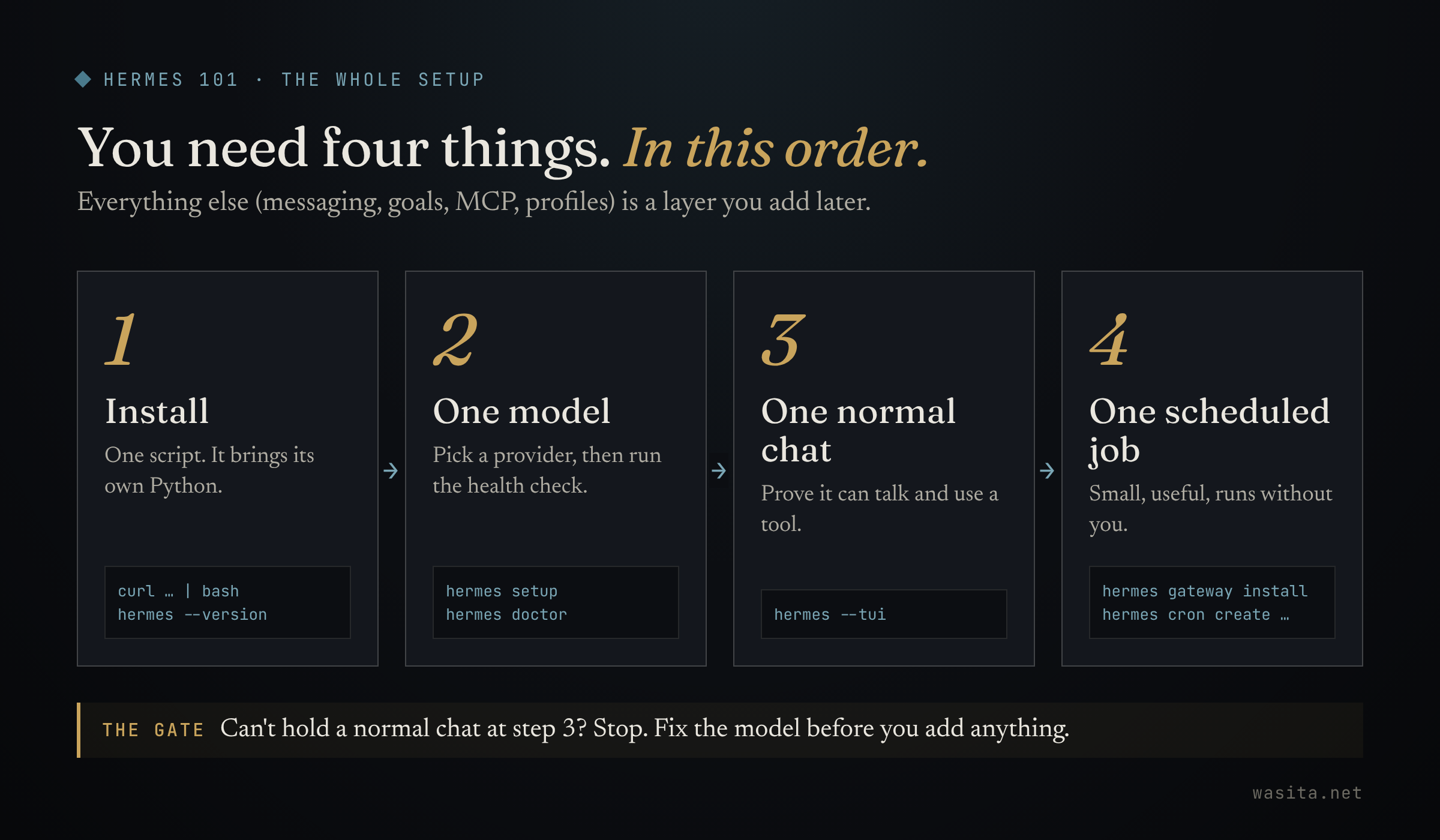
Don’t. You need four of them to start, and they come in a fixed order: install it, connect one model, prove it can hold a normal conversation, then give it one small job that runs without you.
By the end of this post you’ll have an agent that writes a one-line summary of your day into a file you own, every evening at 6pm, whether you remember or not.
What Hermes is, in one minute
Hermes Agent, from Nous Research, is the always-on kernel in my stack. It wraps a model in a loop that does one unusual thing: after a task, it reviews what just happened and, if it spots a reusable pattern, writes itself a new skill. Next time similar work shows up, the skill is already there.
That’s why, when I gave Hermes and OpenClaw the same job for 30 days, Hermes ended up finishing the same task roughly 65% faster than on day one. The gap wasn’t intelligence. It was memory doing real work.
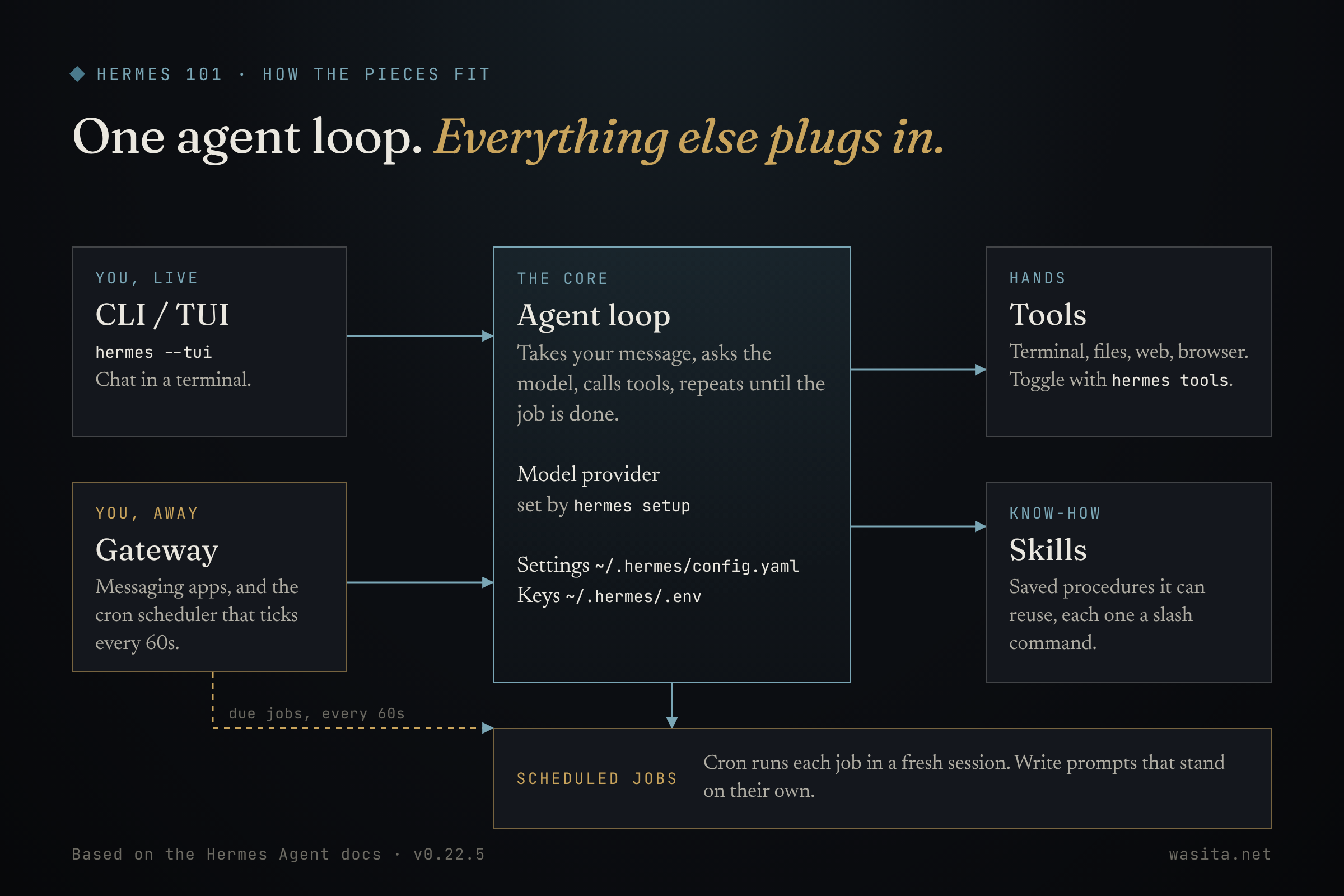
You don’t need most of that diagram on day one. You need the middle box working and one arrow into it.
Before you start
From the installation docs:
| You need | Notes |
|---|---|
| Linux, macOS, or Windows | WSL2 works too. On macOS, Apple Silicon only: Intel Macs aren’t a supported platform. |
git and curl | The installer also uses tar and SHA-256 tools, which most systems already have. |
| Python | Don’t install it. The installer brings its own (current installs run on Python 3.14). |
| A model | An API key for a provider (Nous Portal, OpenRouter, Anthropic and others), or a local model. |
| 64K of context | The model needs at least 64K tokens of context. This matters if you run a local model. |
On a minimal Debian/Ubuntu image (a fresh cheap VPS, for example), you may also need libatomic1.
Step 1: Install
On macOS or Windows, the docs now point you at the Hermes Desktop installer first. This guide uses the command line, because that’s where the scheduled job lives.
Linux, macOS, or WSL2:
curl -fsSL https://hermes-agent.nousresearch.com/install.sh | bashWindows (PowerShell):
iex (irm https://hermes-agent.nousresearch.com/install.ps1)Then reload your shell and check it’s there:
source ~/.bashrc    # or: source ~/.zshrc
hermes --version
hermes: command not found? Your shell hasn’t picked up the new PATH yet. Open a new terminal, or check that ~/.local/bin is on your PATH.
Where things land: the code in ~/.hermes/hermes-agent/, the hermes command in ~/.local/bin/, and your data (config, keys, sessions, skills, memory) in ~/.hermes/. On a server where you don’t want a browser or computer-use tools, the installer takes --skip-browser and --skip-computer-use. If a step fails, the full log is ~/.hermes/logs/install.log.
Step 2: Connect one model
hermes setupIt offers three modes:
- Quick Setup (Nous Portal): OAuth login, no API keys to manage, billed to a Nous Portal subscription. The docs call it the recommended fast path. Go straight there with
hermes setup --portal. - Full Setup: you walk through every provider, tool and option yourself, with your own keys.
- Blank Slate: everything starts off except provider and model, file operations, and the terminal. That includes cron. If you pick it, switch cron back on with
hermes toolsbefore the last step, or your first job will sit there doing nothing.
Coming from OpenClaw, Claude Code, Codex CLI or Cursor? A fresh hermes setup that finds one of them offers to import your setup first.
To change the provider or model later, use hermes model. Or set values directly. Keys go into ~/.hermes/.env; everything else goes into ~/.hermes/config.yaml:
hermes config set OPENROUTER_API_KEY sk-or-...
hermes config set model anthropic/claude-opus-4.6
Then run the health check:
hermes doctorStep 3: Have one normal conversation
hermes --tuihermes --tui is the recommended interface; plain hermes gives you the classic CLI. Try a prompt from the quickstart:
Summarize this repo in 5 bullets and tell me what the main entrypoint is.Three things worth knowing straight away:
/helplists commands,/toolsshows what it can use,/modelswitches models mid-session.- Alt+Enter or Ctrl+J adds a new line without sending (Shift+Enter works in some terminals).
hermes --continue(orhermes -c) picks up your last session.
Now the most useful rule in the docs, and I’d apply it to every agent setup: if Hermes can’t complete a normal chat, don’t add more features yet. Fix the model connection first. Everything below depends on it.
Step 4: One job that runs without you
This is the job I’d start with because it’s one I run myself. Every evening, my Hermes cron writes a one-line summary into Daily/YYYY-MM-DD.md in my notes vault. It’s small, it’s useful on day two, and it teaches the one rule that matters: Hermes never keeps important state in its head. The result goes to a file you own, not into the agent’s memory.
1. Start the gateway
The gateway runs scheduled jobs. It checks the scheduler every 60 seconds. No gateway, no job. Ever.
hermes gateway install     # install as a user service
# or run it in the foreground while you test:
hermes gateway
2. Make the folder, then create the job
--workdir must be an absolute path to a folder that already exists. A relative path or a missing folder gets rejected, so make it first:
mkdir -p "$HOME/notes/Daily"

hermes cron create "0 18 * * *" \
  "Look at the notes in this folder that changed today. Write a one-line summary of the day to Daily/YYYY-MM-DD.md, using today's date." \
  --name "daily-summary" \
  --workdir "$HOME/notes"
What each part does:
"0 18 * * *": every day at 18:00, read in your profile’s timezone (thetimezone:key in~/.hermes/config.yaml). Plain English works too (every day at 9am,weekdays at 9am,every 2h).--workdir: the folder the job runs in. File and terminal tools use it as their working directory, soDaily/lands in your notes.--name: so you can call the job by name instead of an ID.
The prompt is written to stand on its own on purpose. Each cron run starts a fresh session with no memory of your chats, so “do the usual” means nothing to it.
One check before you rely on it: a cron job gets the tools you’ve enabled for the cron platform, not your CLI defaults. Run hermes tools, pick the “cron” platform, and make sure the file tools are on, or the job has nothing to write with.
Prefer to stay in chat? The same thing works as a slash command (/cron add "every 2h" "Check server status"), or just ask in plain language: “Every evening at 6pm, write a one-line summary of my day to Daily/.“
3. Check it, then don’t wait until 6pm
hermes cron list
hermes cron status
hermes cron run daily-summary
cron status tells you whether the scheduler is actually alive. cron run fires the job now, so you see the output now rather than at 6pm. From the CLI, output is saved by default under ~/.hermes/cron/output/.
That’s it. You have a working Hermes.
Common gotchas
“command not found” after install. Reload your shell (source ~/.bashrc) or open a new terminal.
API key not set, or empty replies. Re-run hermes model. Then hermes doctor.
Your cron job never fires. Nine times out of ten the gateway isn’t running. Check hermes gateway status and hermes cron status. If a job shows as overdue, restart the gateway with hermes gateway restart, or fire it by hand with hermes cron run daily-summary.
The job runs but does nothing. If you chose Blank Slate, cron and most tools start off. Open hermes tools, pick the cron platform, and switch on what the job needs.
--workdir rejected. Use an absolute path ("$HOME/notes", not notes) and create the folder first.
A local model that falls over on real tasks. Hermes needs at least 64K of context. With llama.cpp that’s --ctx-size 65536; with Ollama, -c 65536.
Lost your session. hermes sessions list, then hermes --continue.
Settings feel wrong after an update. hermes config check, then hermes config migrate.
Trusting the feature list. Running Hermes taught me to inspect the active configuration instead of trusting the feature list. Some controls only warn by default; some hard stops are opt-in. By default, the checker in a goal loop is the same main model that did the work. Know which switches are on before you leave anything running unattended. (I wrote it up in What Hermes taught me about loop engineering.)
When you’re stuck, the docs’ recovery order is a good habit: hermes doctor → hermes model → hermes setup → hermes sessions list → hermes --continue → hermes gateway status.
The checklist
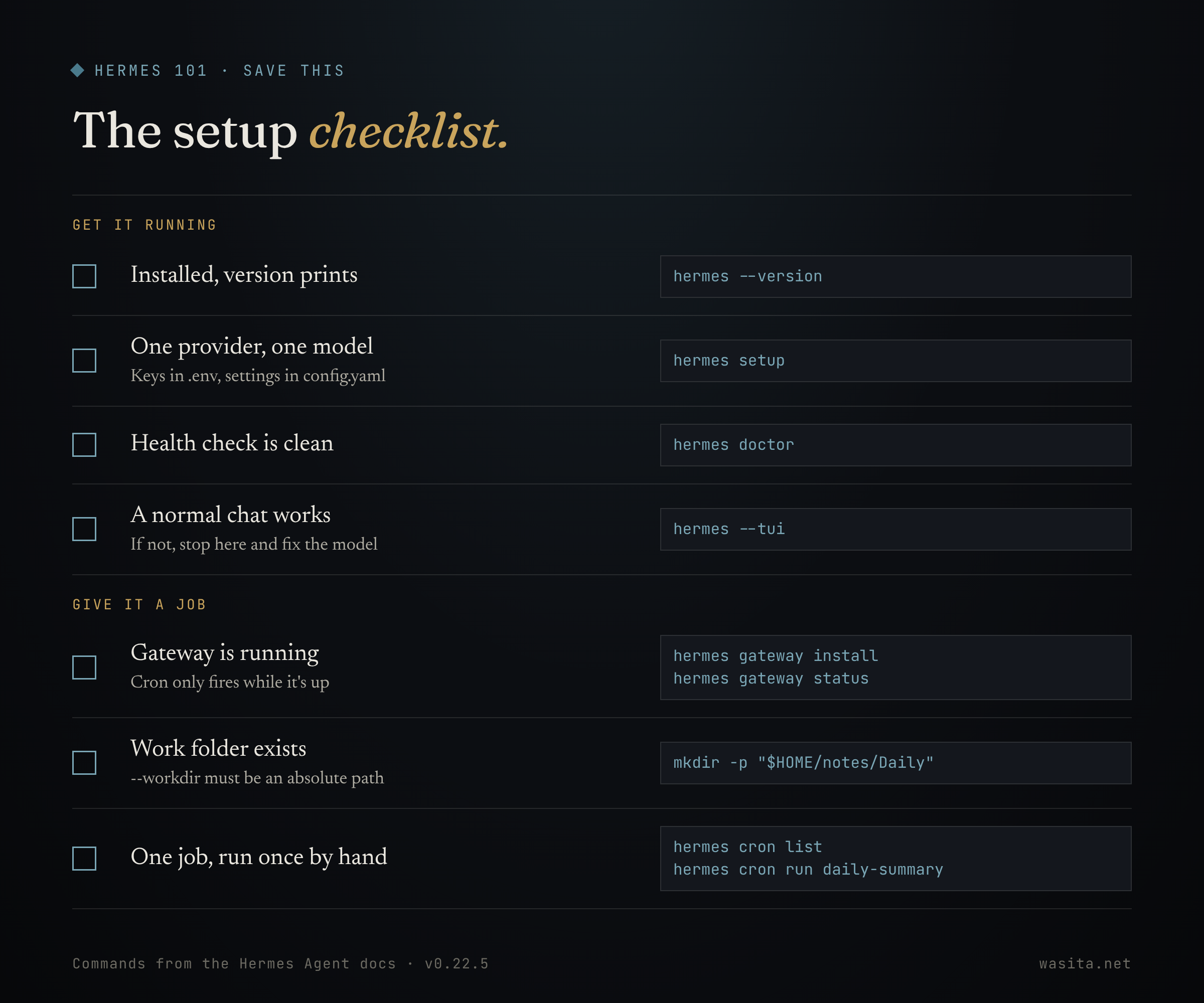
Screenshot this one. It’s the whole post on a card.
-
hermes --versionprints a version -
hermes setupdone: one provider, one model -
hermes doctoris clean - One normal chat in
hermes --tui - Gateway running:
hermes gateway status - Folder exists:
mkdir -p "$HOME/notes/Daily" - Job created, then fired once:
hermes cron run daily-summary
Where to go next
Once the daily job has run for a few days, add one thing at a time:
-
Talk to it from your phone.
hermes gateway setupconnects a messaging platform. For Telegram you create a bot with @BotFather and give Hermes the token. See the Telegram guide. -
Give it a goal.
/goal Fix every lint error in src/ and verify ruff check passeskeeps Hermes working across turns until a judge says it’s done, with a 20-turn budget so it can’t run forever. Add a hard check with/goal gate add <command>. See Goals. -
Watch what it learns. Skills live in
~/.hermes/skills/and every one becomes a slash command. Browse withhermes skills browse. To approve each new skill before it’s written, set this in~/.hermes/config.yaml:skills: write_approval: trueThen review with
/skills pending. See Skills. -
Keep it current.
hermes update.
The takeaway
Install, one model, one normal chat, one scheduled job. That’s a working Hermes. Everything else (messaging, goals, MCP, profiles) is a layer, and every layer is a liability you pay for on every heartbeat. Add one only when it earns its place.
Start bare. Then let it learn.
Still deciding whether Hermes is the right kernel at all? Start with I Gave Hermes and OpenClaw the Same Job for 30 Days. The short version: OpenClaw dispatches; Hermes specializes.
So: what’s the first job you’d hand it?
Sources: Installation · Quickstart · Configuration · Scheduled tasks (cron) · CLI reference. Written against Hermes Agent v0.22.5.