OpenChamber 101: Four Steps to Agent Work That Finishes Without You
Install OpenChamber on your Mac, give one session a finish line with Session Goals, keep the Mac awake, and check in from your phone over Private Relay. Every setting and command checked against the docs and the v2.6.0 source.
You give the agent a big job at 10pm. It does one turn. Then it stops and asks if it should continue. You’re asleep. So is the work.
Don’t babysit it. Give it a finish line.
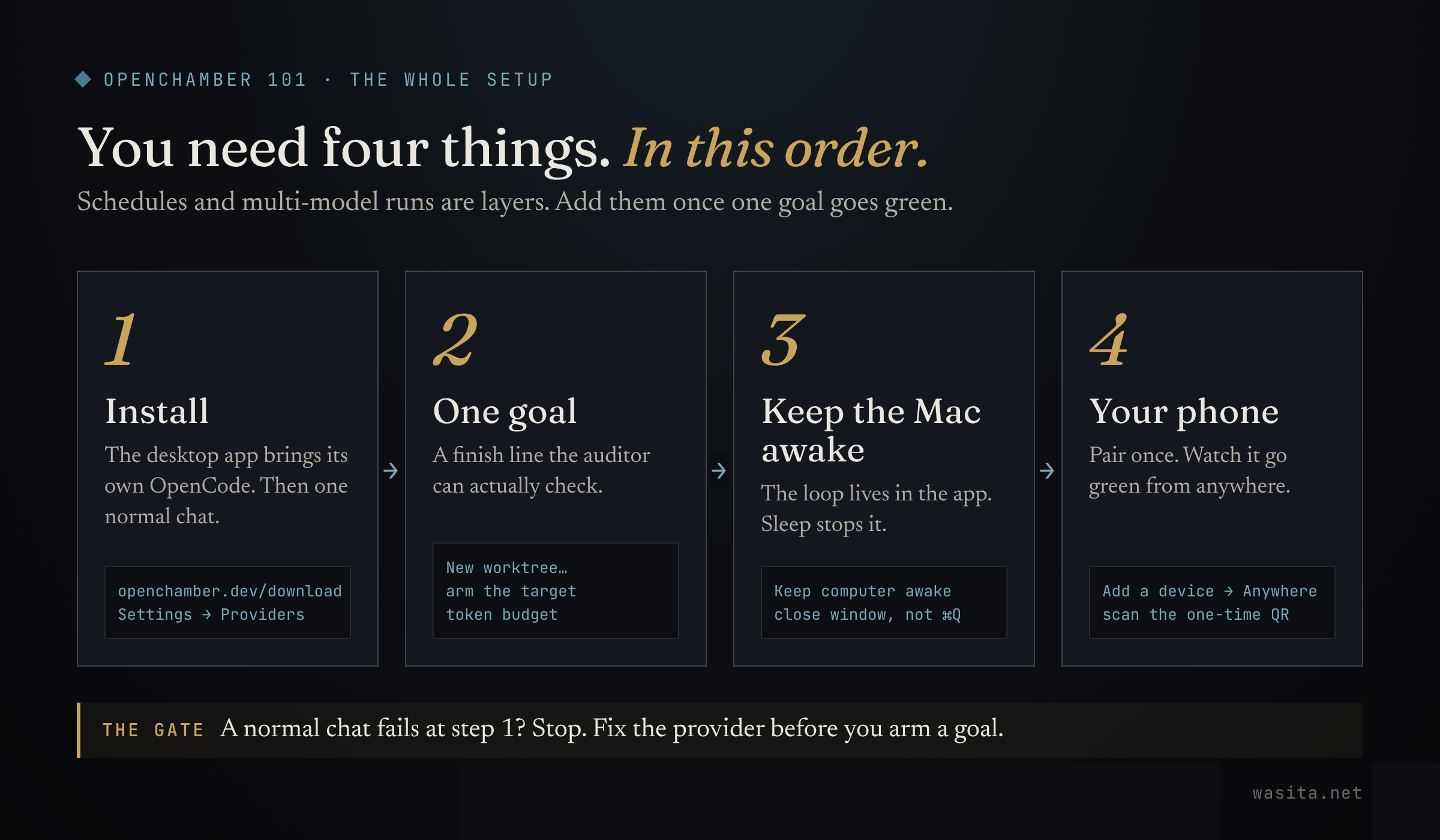
I run OpenChamber on my Mac every day, and long-running work is the reason. This post is the setup I’d hand anyone who wants the same thing, in four steps: install it, give one session a goal it can actually finish, keep the Mac awake, then pair your phone so you can look in from anywhere.
By the end you’ll have one long task running in its own worktree, checked after every turn, capped by a token budget, and visible from your phone.
What OpenChamber is, in one minute
OpenChamber is an open-source (MIT) workspace for running and reviewing AI coding work on desktop, web, VS Code and mobile. It runs on top of OpenCode, the open-source coding agent: OpenCode does the agent work, and OpenChamber gives you the room around it. Sessions, diffs, worktrees, git, and a way to reach all of it from another device. It’s an independent project, not affiliated with the OpenCode team.
The part that matters for long work is that the loop doesn’t live in your browser tab. It lives in the OpenChamber server, which on a Mac is the desktop app itself. Close the tab, lock the phone, and the agent keeps going. Quit the server, and it stops.
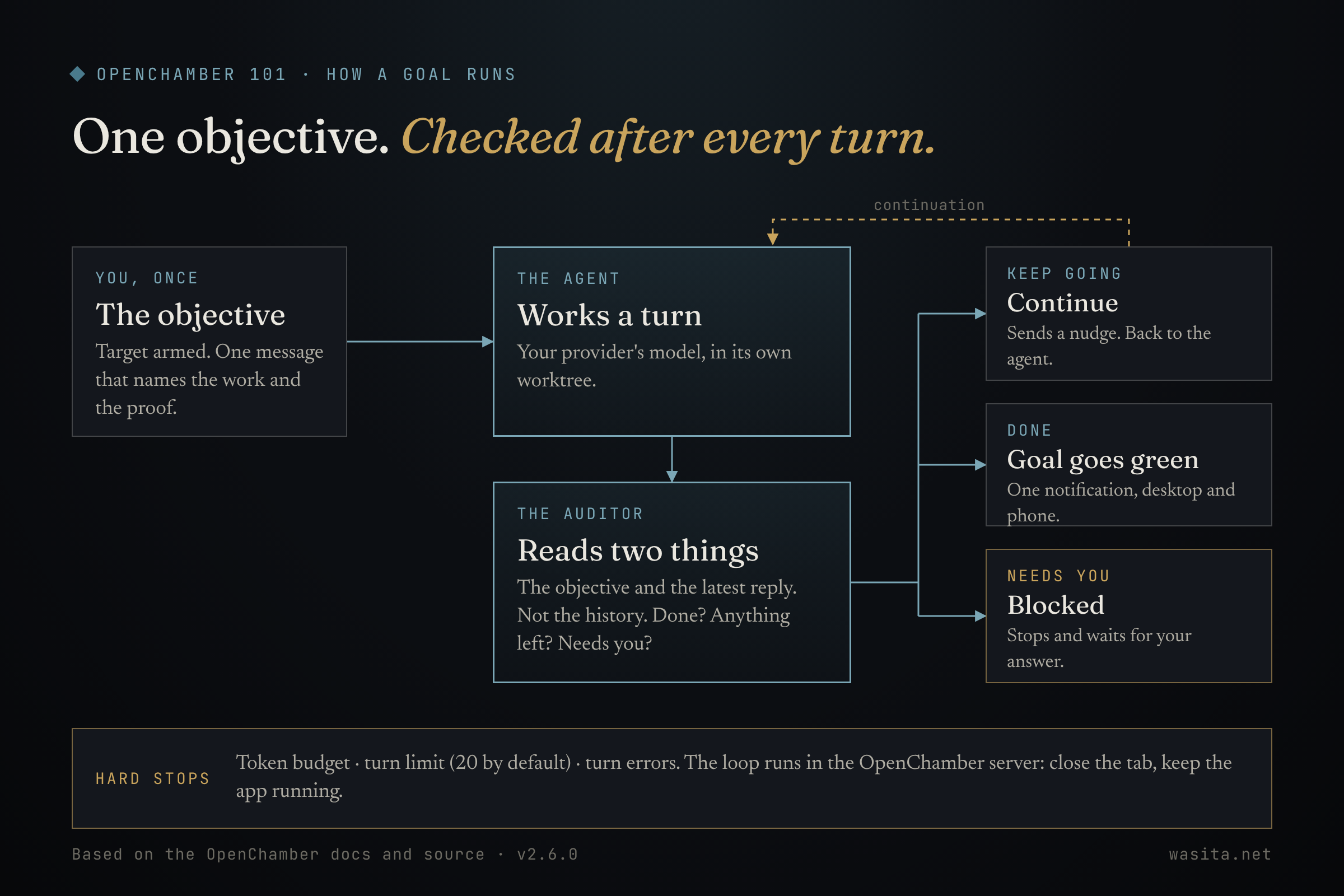
Read that diagram once and the rest of this post makes sense. The auditor sees the objective and the last reply. That’s it. Everything below follows from that.
Before you start
From the Install and Providers docs:
| You need | Notes |
|---|---|
| A Mac | The desktop app has builds for Apple Silicon and Intel Macs. Windows and Linux builds exist too. |
| Nothing else to install | The desktop app brings its own copy of OpenCode. The CLI/web route is the one that needs OpenCode and Node.js 24.14 or newer. |
| One AI provider | Connected in Settings → Providers. You pay your provider; OpenChamber itself is free. |
| A git repo | For worktrees. A goal works in any folder, but a long unattended run belongs on its own branch. |
Step 1: Install, then have one normal chat
Download the desktop app from openchamber.dev/download or the latest GitHub release and open it. This guide was written against v2.6.0, released 2 Nov 2026.
Prefer a server you start from the terminal? The CLI is one line, and then you start it with a UI password:
curl -fsSL https://raw.githubusercontent.com/openchamber/openchamber/main/scripts/install.sh | bash
openchamber --ui-password be-creative-here
Open the URL it prints (usually http://localhost:3000). openchamber status tells you if it’s up, openchamber logs shows what it’s doing, openchamber stop stops it.
Either way, connect one provider in Settings → Providers, add a project, and have one ordinary conversation. Ask it to explain the repo. Nothing clever.
Same rule I gave in Hermes 101: if a normal chat doesn’t work, don’t arm a goal. A goal is just a normal chat that keeps going. If the model connection is flaky, the goal will be flaky for hours.
Step 2: Give one session a finish line
1. Start it in a worktree
When you start a new session, pick New worktree… (or Quick worktree) in the branch menu above the composer. The session gets its own branch and its own folder, so a long run can’t trample whatever you’re doing in the main checkout. When the work is good, Integrate in the Git view brings the commits back; Archive worktree cleans up.
2. Write an objective that stands on its own
Press the target button in the composer. It lights up: goal mode is armed. Your next message becomes the objective.
This is the step people get wrong. The auditor that judges every turn sees only the objective and the agent’s latest reply. Not the chat history. Not what you meant. So “fix it” or “keep going on the thing” gives it nothing to check against.
The docs’ own example is the shape to copy:
Add tests for the export module and make the whole test suite pass.It names the work, and it names the proof. Vague goals are the ones that burn hours: one long review of OpenChamber describes a goal like “improve performance” iterating for 40 minutes down a dead end. (ArceApps)
Can’t phrase it? Type /craft-goal (or /craft-goal <your idea>) and the agent turns your idea into a checkable objective for the goal dialog.
3. Set the two limits before you walk away
- Token budget. Set a default in Settings → Chat → Goal, or per goal in the goal dialog (press the lit target button). When it hits the budget, the goal stops as “budget reached” instead of spending more. Raise it and resume if the work was worth it.
- Turn limit. In the same settings: how many automatic continuations it gets before it stops. The default is 20 and it goes up to 200.
That turn limit is the most-asked question in the issue tracker. Someone wanted their agent to “run infinitely” and kept having to click Resume (#4078). It’s not a bug. It’s the runaway brake, and Resume resets the count. Raise it if you trust the objective. Don’t remove the budget at the same time.
4. Send it, then read the colours
While it runs, the target stays blue and the goal strip shows “Evaluating…” between turns. Green means complete. Red means blocked or out of budget. You get one notification when it settles, on desktop and as a mobile push, instead of a ping after every turn. Pause and Resume sit on the strip, and the stop button pauses the goal too: your stop always wins.
One goal per session. If you want three things done in parallel, that’s three sessions, ideally three worktrees.
Step 3: Keep the Mac awake
A goal runs in the OpenChamber server. On a Mac, that’s the desktop app. If the Mac sleeps, the work stops.
Turn on Keep computer awake while OpenChamber is running. It’s in Settings → General, in the desktop app’s section. Its description says exactly what it does: “Prevents system sleep so phones can keep reaching this app. The screen can still turn off.” It’s a desktop-app setting; on the CLI, use caffeinate (below).
Three Mac things that will catch you out:
- Closing the window is not quitting. On macOS, closing the last window leaves OpenChamber running. ⌘Q quits it, and the goal with it.
- Closing the lid is still sleep. Keep awake stops idle sleep. A closed MacBook lid sleeps the machine unless it’s in closed-display mode, which needs an external display and power. (Macworld) Leave the lid open and let the screen go dark.
- On the CLI, use
caffeinate. It ships with macOS.caffeinate -i openchamberkeeps the Mac from idle sleeping for as long as the server runs (-sgoes further, but only on AC power). If you want the server to come back after a reboot,openchamber startup enableinstalls a LaunchAgent that starts it at login.
Want to see what’s holding your Mac awake right now? pmset -g assertions lists it.
Step 4: Pair your phone
You don’t need to be at the Mac to see whether the goal went green.
On the Mac: Settings → Remote Instances → Connect to this server → Add a device. Pick Anywhere, then Create QR code. On the phone, install the app (TestFlight for iPhone, the APK from the release page for Android, both in public beta) and scan the code.
“Anywhere” uses Private Relay when the phone is away from your network, and a direct connection when you’re home. What you’re trusting:
- Your Mac opens an outbound connection. Nothing listens for incoming connections from the internet. No ports to open.
- Traffic is end-to-end encrypted between the phone and your Mac. The relay forwards sealed traffic it has no keys for.
- The QR code works once and expires. Every device gets its own token, and you can revoke any of them.
- The relay starts when a device needs it and stops when none does. Settings → Remote Instances → OpenChamber Relay shows its status and turns it off.
One file to treat like a key: ~/.config/openchamber/relay-identity.json. Anyone with a copy can pose as your server on the relay. Keep it out of bug reports, dotfile repos and shared backups.
Want the relay on your own infrastructure? It’s open source and self-hostable (openchamber-relay); point OpenChamber at it with OPENCHAMBER_RELAY_URL. And if you need a public URL for a browser you can’t pair, that’s a tunnel (openchamber tunnel start --provider cloudflare --mode quick --qr), not the relay. Set a UI password first.
That’s it. You have a long task that finishes without you, and a phone that tells you when it has.
Common gotchas
The goal keeps stopping at 20 turns. That’s the turn limit, not a crash. Raise it in Settings → Chat → Goal, or press Resume (it resets the count).
It stopped as blocked the first time it had a question. The docs say a goal only ends as blocked after three “stuck” verdicts in a row. In the v2.6.0 source, a verdict that the agent needs you settles it straight away, as “waiting for user input”. Either way, the fix is the same: write the objective so it never has to ask. Put the decisions in the objective.
It “finished” but didn’t. Your objective had no proof in it. “Refactor the auth module” can’t be checked. “Refactor the auth module and make npm test pass” can.
It moved on while the tests were still running. In v2.6.0, a background command the agent started in that turn is waited for (up to 30 minutes); one from an earlier turn, like a dev server, isn’t. There’s still an open issue on the edge cases (#5394). For anything the goal depends on, have the agent run it in the foreground.
It died overnight. The Mac slept, the lid closed, or OpenChamber was quit. Keep awake on, lid open, window closed but app running.
Goals in VS Code. The VS Code extension hides Run as goal, because the goal loop doesn’t run there. Use the desktop app or the CLI server for unattended work.
The phone shows nothing new. It can only see what the server is doing. If the server is asleep, so is the phone’s view of it.
The checklist
Screenshot this one. It’s the whole post on a card.
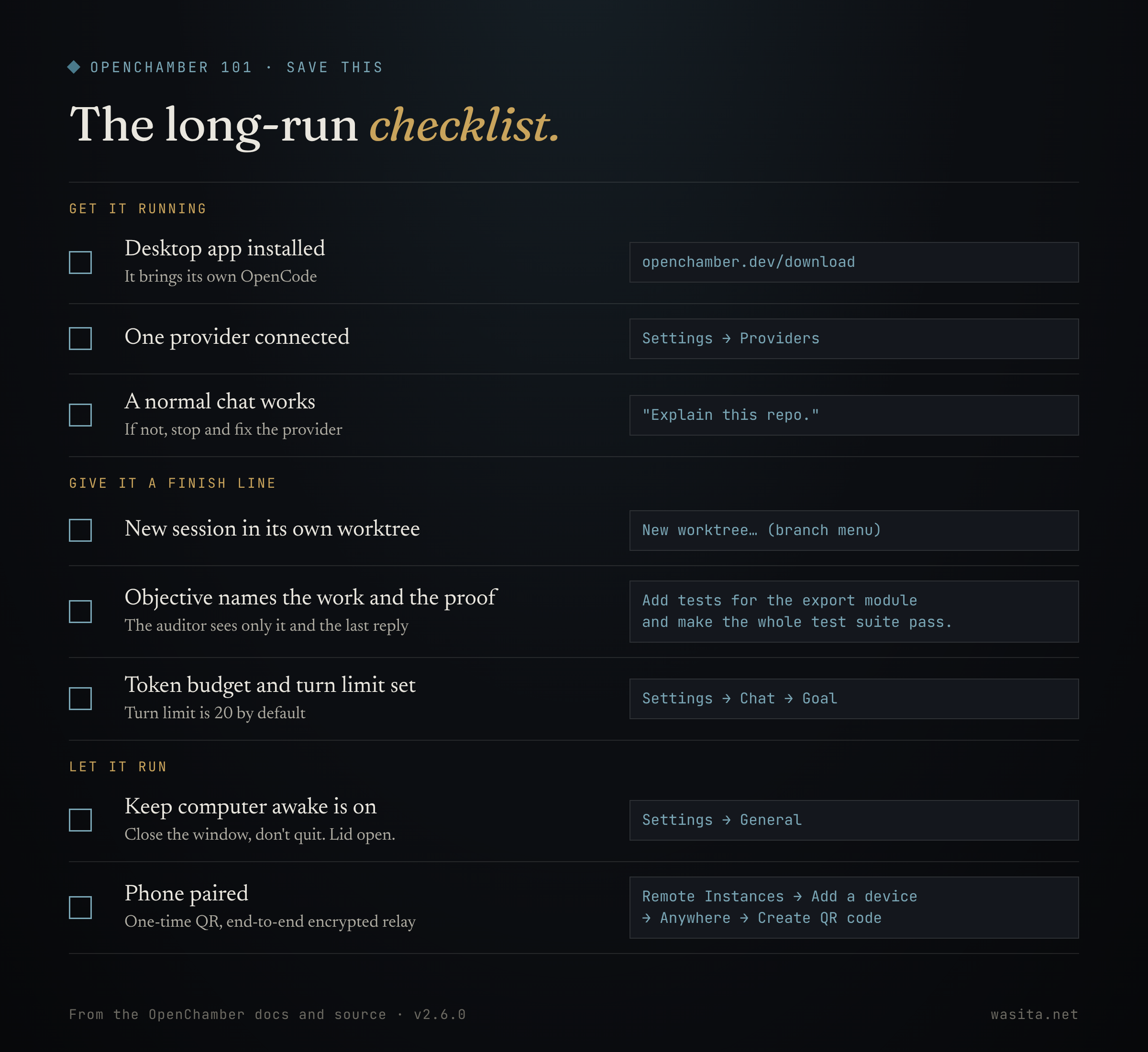
- Desktop app installed, one provider connected
- One normal chat works
- New session in its own worktree
- Target armed, objective names the work and the proof
- Token budget and turn limit set (Settings → Chat → Goal)
- Keep computer awake on, app running, lid open
- Phone paired with Anywhere
Where to go next
Once one goal has gone green, add one thing at a time:
-
Make it repeat. Scheduled tasks run a prompt daily, weekly, once, or on a cron expression. Tick Run as goal and each run keeps going until it’s done, not just one turn. From the CLI:
openchamber schedule create --dir "$HOME/code/my-app" \ --name "nightly-tests" \ --prompt "Run the full test suite. Fix any failing test and make the whole suite pass." \ --model provider/model \ --daily 02:00 --timezone Australia/Sydney \ --goal --goal-token-budget 200000--modeltakesprovider/model(swap in yours).openchamber schedule list --dir "$HOME/code/my-app"shows it with its task id, andopenchamber schedule run --dir "$HOME/code/my-app" --task <id>fires it now so you don’t wait until 2am. Same caveat as goals: it only fires while the server is running, so this is where Keep awake andopenchamber startup enableearn their keep. Prefer files? Loops live in.agents/loops/*.mdwith a cron schedule in the frontmatter, and they start disabled until you setenabled: true. -
Not sure which model to trust with it? Multi-run sends one prompt to several models at once. Open it from the model picker (Run on several models). Turn on Separate worktrees (the docs call it isolate runs) and each one gets its own worktree and branch. When they finish, keep the best run (the others are archived and stay recoverable), or press Fuse results: Fusion combines the final answers, or, in its code mode, works in its own worktree and reads each run with git. Already halfway through a chat? Ask other models turns it into run one. Fair warning: five models means five bills. Save it for work where being wrong is expensive.
-
Hand a plan to a goal. When you implement a saved plan in a new session or worktree, tick Run as goal and the plan becomes the objective, so the auditor judges against the actual plan.
The takeaway
Install, one normal chat, one goal with a finish line, a Mac that stays awake, a phone that tells you when it’s done. That’s OpenChamber for long work. Schedules and Fusion are layers on top, and every layer spends tokens while you sleep. Add one only when the goal underneath it goes green on its own.
The skill isn’t running the agent longer. It’s writing an objective a stranger could check.
If you’re coming from a goal loop elsewhere, I wrote up what that taught me in What Hermes taught me about loop engineering. Same lesson: know which brakes are on before you leave anything running.
So: what would you leave running overnight?
Sources: Install · Session Goals · Worktree Sessions · Scheduled Tasks · Multi-run · Private Relay · Connect a Device · Mobile · OpenChamber source. Written against OpenChamber v2.6.0.